In today's data-driven business landscape, securing sensitive information while ensuring appropriate access is crucial. Power BI's Row-Level Security (RLS) offers a robust solution for managing data access across complex organizational hierarchies. This guide will walk you through implementing Parent-Child Hierarchy RLS, allowing you to create dynamic, role-based data access controls.
#Understanding Parent-Child Hierarchies
A Parent-Child hierarchy represents nested relationships within your data structure. Consider this common business scenario:
Branch └── Customer └── Location └── POS System
Each level can have multiple children, creating a dynamic, multi-level structure that requires careful security implementation.
The Power of Row-Level Security
RLS in Power BI lets you restrict data access based on user roles and credentials. When combined with Parent-Child hierarchies, it creates a flexible security system where users see only the data relevant to their position in the organizational structure.
Example Scenario
Let's look at different user access levels in a real-world scenario:
- Global Admin (User1)
- Full access to all branches, customers, locations, and POS systems
- Regional Manager (User2)
- Access to specific branches and all underlying data
- Example: Branches 25bf66f2 and 054f5fda
- Customer Manager (User3)
- Access to one branch and specific customer
- All locations and POS systems under that customer
- Location Manager (User4)
- Access to specific branch, customer, and location
- All POS systems under that location
- POS Operator (User5)
- Access to specific branch, customer, location, and POS system
Implementation Guide
1. Data Model Preparation
Ensure your data model clearly defines the hierarchical relationships between entities. Each level should have unique identifiers and proper relationships established.
2. Creating Roles in Power BI
- Open Power BI Desktop
- Navigate to the Modeling tab
- Select "Manage Roles"
- Create a new role (e.g., "RLS")
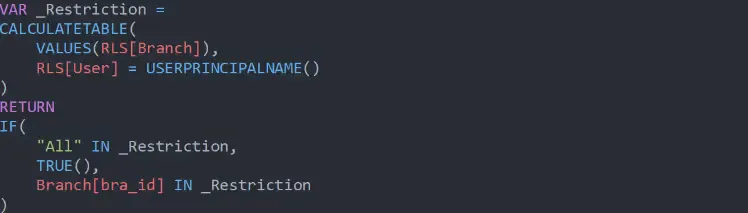
3. Implementing DAX Security Rules
Let's look at the DAX expressions for each hierarchical level:
Branch Level Security
dax
Customer Level Security
dax
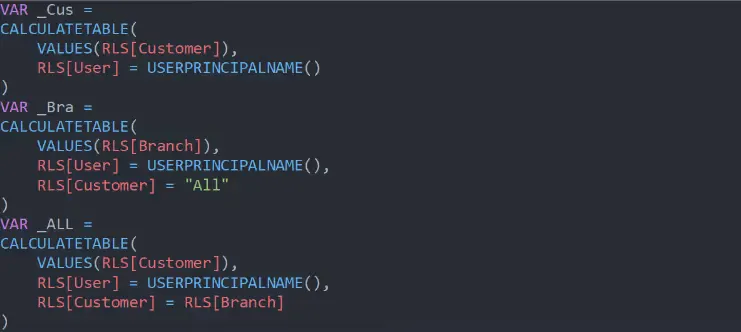

Similar patterns follow for Location and POS levels, adjusting the hierarchy accordingly.
Testing and Deployment
Testing Your Implementation
- Use the "View as Role" feature in Power BI Desktop
- Test each user role scenario
- Verify that data restrictions work as expected
Production Deployment
- Publish your report to Power BI Service
- Assign users to appropriate roles
- Verify security settings in production
Benefits of Parent-Child Hierarchy RLS
- Enhanced Security
- Granular control over data access
- Dynamic filtering based on user context
- Scalability
- Easily manages complex organizational structures
- Accommodates growing hierarchies
- Flexibility
- Customizable security rules using DAX
- Adaptable to changing business needs
- Maintenance
- Centralized security management
- Easy to update and modify access rules
Best Practices
- Regular Testing
- Periodically verify security rules
- Test with different user scenarios
- Documentation
- Maintain clear documentation of security rules
- Document user role assignments
- Performance
- Optimize DAX expressions for better performance
- Regular monitoring of report performance
Conclusion
Implementing Parent-Child Hierarchy RLS in Power BI provides a robust solution for managing data access across complex organizational structures. By following this guide, you can create a secure, scalable, and maintainable security system that ensures users only see the data they're authorized to access.
Remember that security is an ongoing process. Regularly review and update your security implementation to maintain its effectiveness and adapt to changing business needs.
Ready to enhance your Power BI security? Start implementing Parent-Child Hierarchy RLS today and ensure your organizational data remains secure and properly accessible!